Section
Lesson
Lesson
Lesson
Lesson
Lesson
Section
Lesson
Lesson
Lesson
Lesson
Lesson
Section 1
Lesson 1
Lesson 2
Lesson 3
Lesson 4
Lesson 5
Lesson 6
Lesson 7
Lesson 8
Lesson 9
Lesson 10 Lesson 11 Lesson 12
Lesson 13
Lesson 14
Lesson 15
Lesson 16
Section 3
Lesson 17
Lesson 18
Lesson 19
Lesson 20
Lesson 21
Lesson 22
Lesson 23
Lesson 24
Section 3
Lesson 25
Lesson 26
Lesson 27
Lesson 28
Lesson 29
Lesson 30
Lesson 31
Lesson 32
Lesson 33
Lesson 34
Lesson 35
Section 4
Lesson 36
Lesson 37
Lesson 38
Lesson 39
Chapter 1 is currently under production.
Chapters 2 and 3 are ready.
Lesson 75 | Conjunct Motion & Voice Distinction
Master the art of melodic projection within a complex texture where melody and accompaniment share the same harmonic DNA.

Studio Insights
The "Echo" Challenge
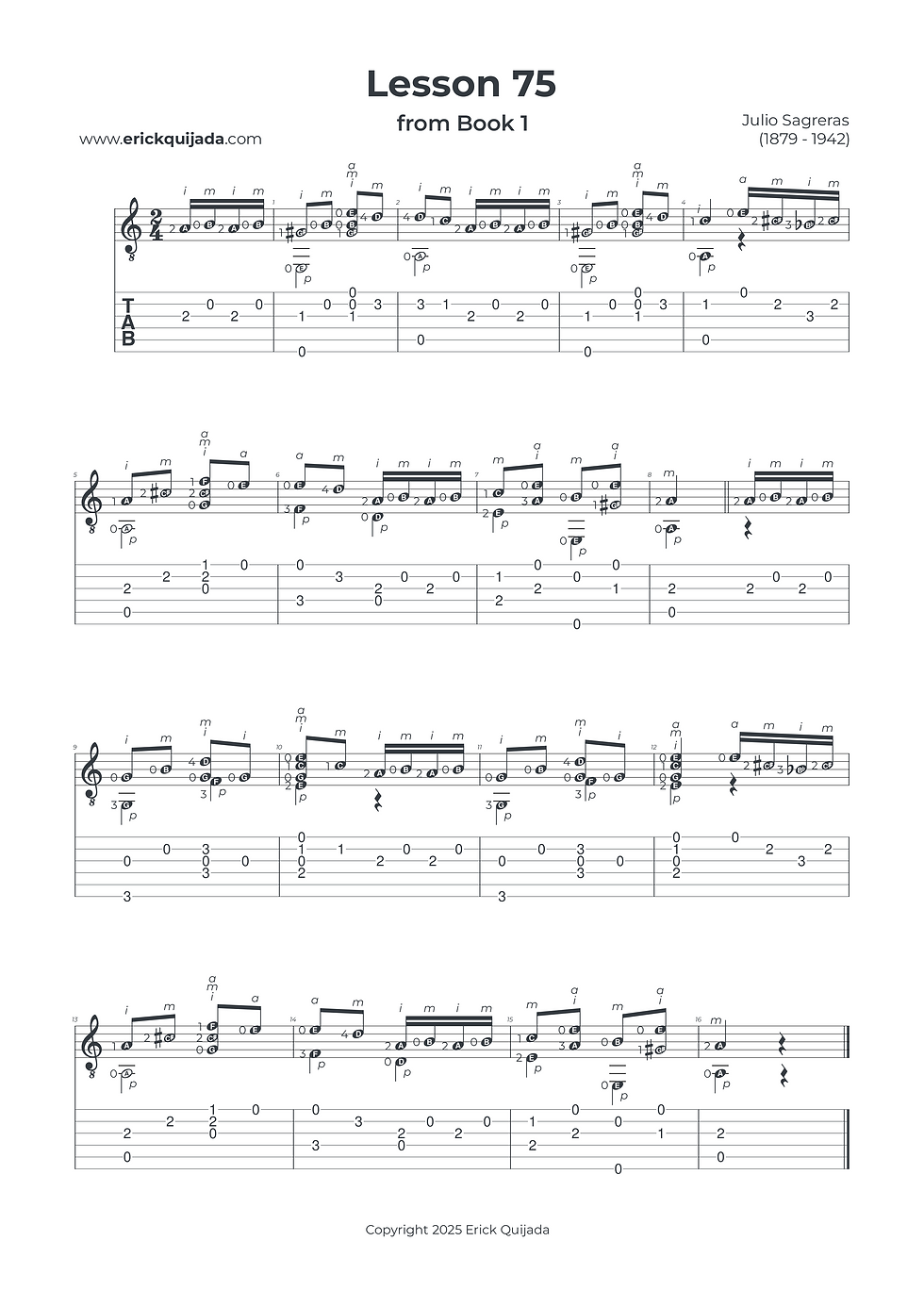
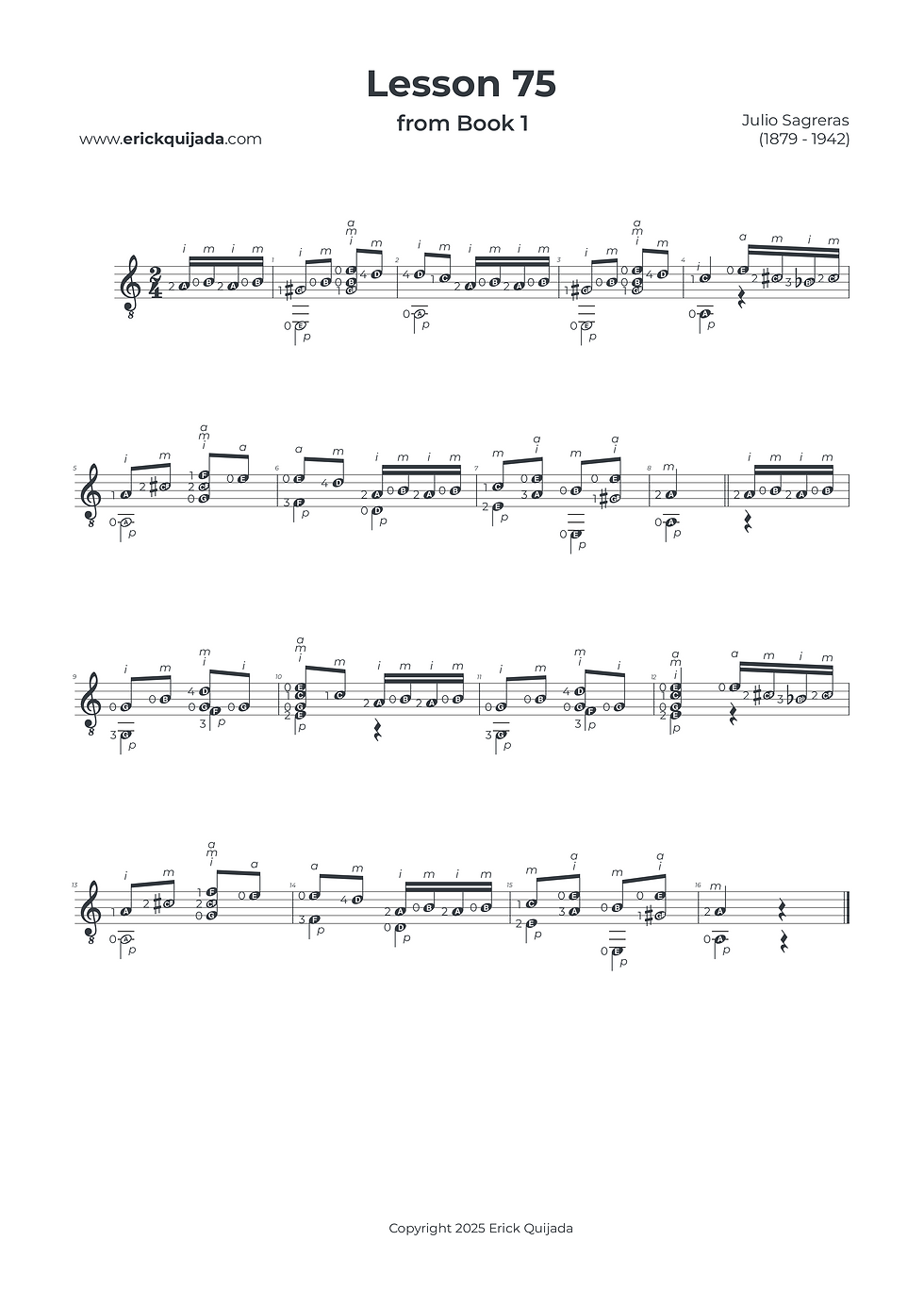
In this piece, the melody moves through both conjunct (stepwise) and disjunct (skipping) motions. A unique hurdle occurs when notes used in an ascending melodic skip—such as the G# and B in measure 1—are immediately repurposed as accompaniment notes. Aim to 'tuck' the accompaniment under the melody by plucking the notes with a softer touch when they transition into their harmonic role. This ensures the listener can clearly distinguish the "Lead Singer" from the "Backing Band."
The Right-Hand Framework
For the majority of this lesson, your i-m-a fingers are anchored to their "home strings" (3, 2, and 1). However, stay alert for the technical exceptions in measures 8 and 16, where the middle finger (m) must reach down to the 3rd string. Maintaining a stable hand architecture while allowing for these micro-shifts is key to achieving a sophisticated and even tone.
Top-Voice Priority
In this lesson, the main melody is always the highest note. Focus your energy on giving more volume to whichever RH finger is plucking that top voice. Practice slowly to audit this balance—the more granular your slow practice, the more refined your final result will be.
The Play along
I've found that at the begining of the learning journey it can be very helpful to have a recording to follow along. Remember that you can easily change YouTube video playback speed on any device by clicking the settings gear icon, selecting Playback speed, and choosing a different speed from the menu, or even setting a custom speed.